
How it works
From first call
to getting paid.
Here is the full workflow from signing up to money in your account. Eight steps, all from your phone.
Start free trial - no card required14-day free trial - Cancel anytime
Step 01
Sign up and set up
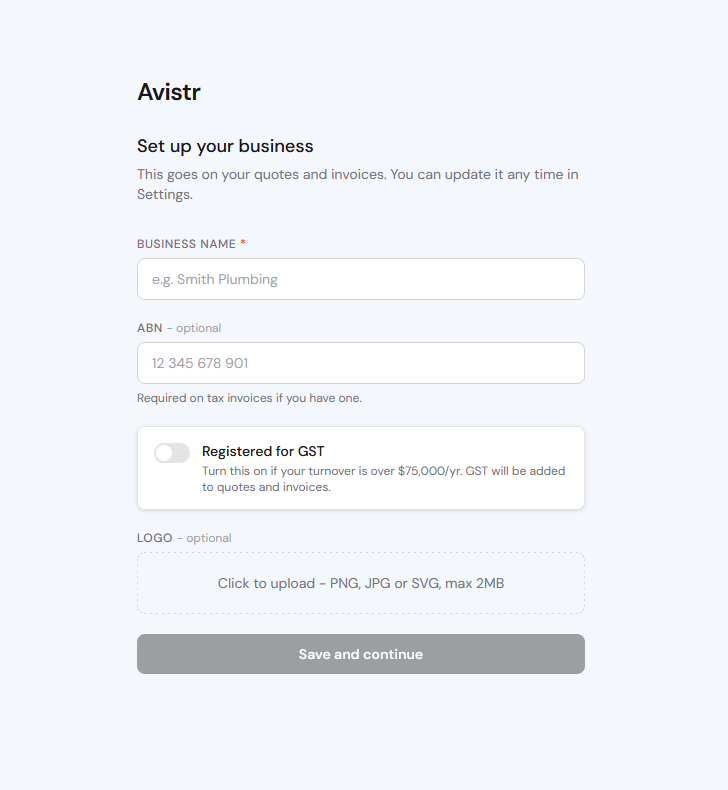
Create your account and enter your business details - business name, ABN, logo and bank details. Takes under five minutes. No onboarding call, no configuration wizard, no setup fee.
Your ABN, GST status and contractor licence number are pulled onto every quote and invoice automatically from this point on.
Step 02
Add a client
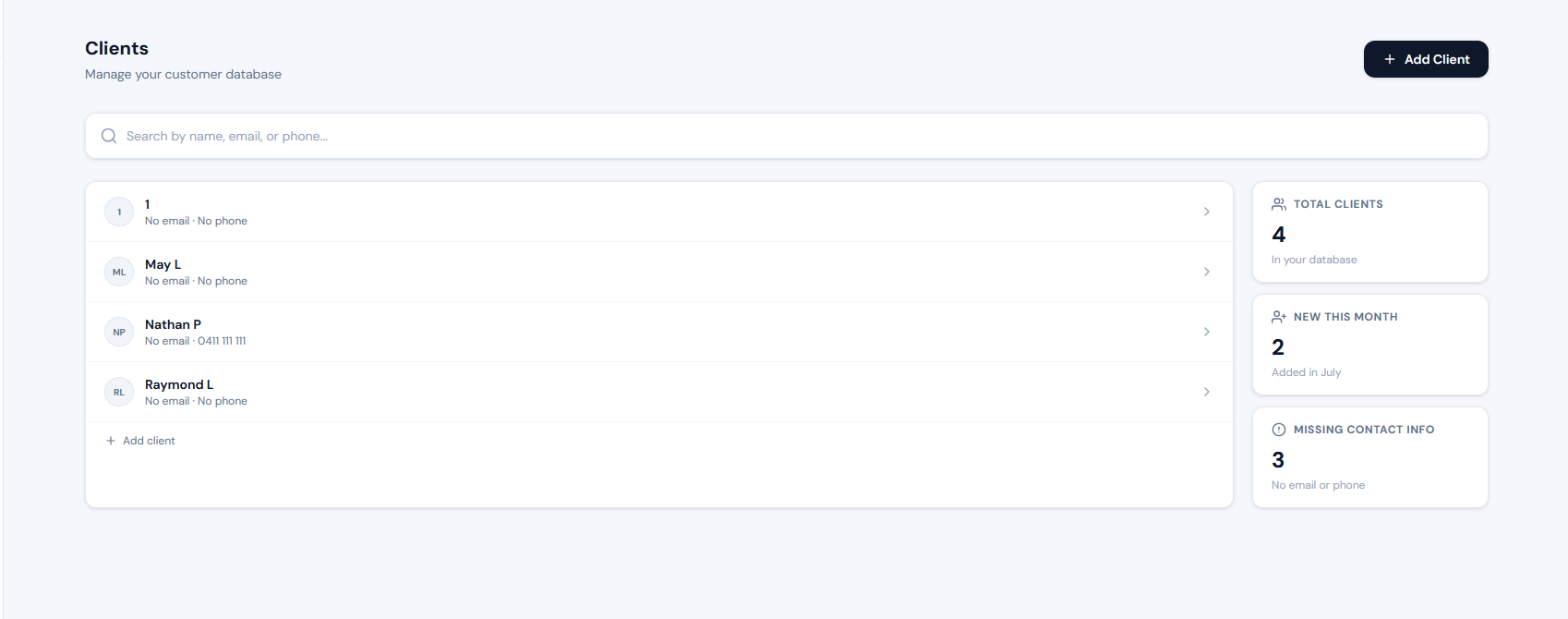
Add your client's name, phone number, email address and job address. Takes about thirty seconds. Their details are saved so every future quote and job for that client is pre-filled.
Tap the address on any job and it opens straight in Google Maps. Tap the phone number to call. Everything is one tap away.
Step 03
Send a quote
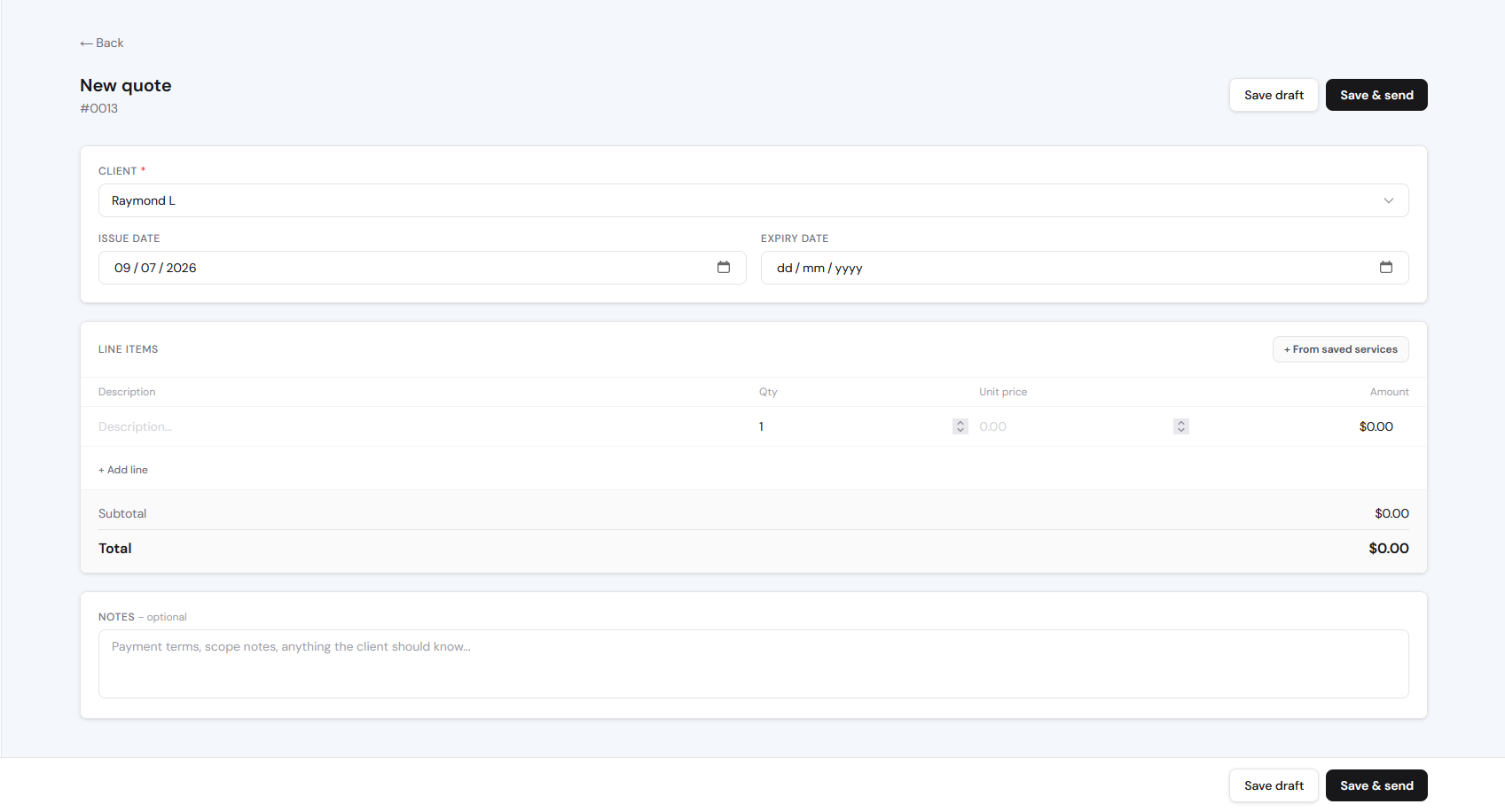
Build your quote with line items, apply GST automatically, add any notes and send it to the client by email. The whole thing takes under two minutes from your phone.
Save your most common services and add them with a tap. Labour, call-out fee, materials - whatever you charge for, saved and ready to go.
Step 04
Client accepts
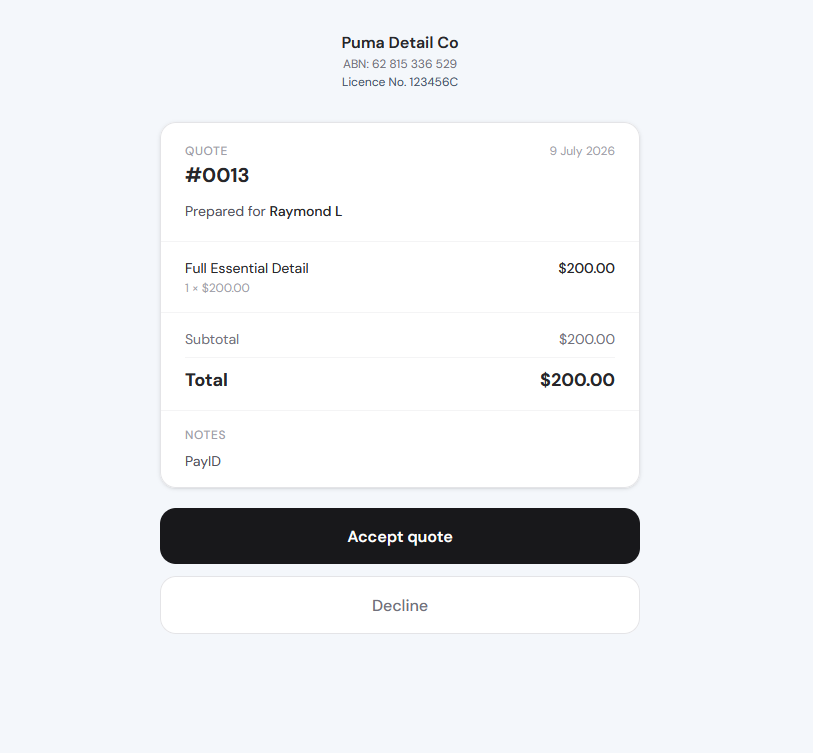
Your client gets an email with a link to view the quote. They tap Accept and you are notified. No app download required on their end - it works in any browser on any device.
The quote page looks professional on any screen. Your logo, business name and ABN all appear exactly as they should.
Step 05
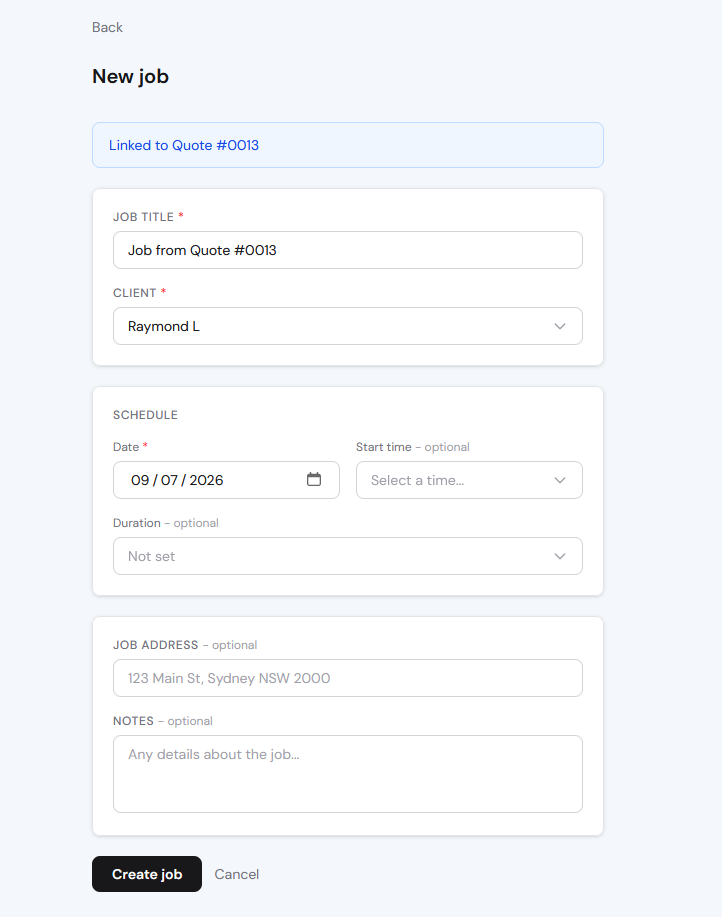
Book the job
Convert the accepted quote to a scheduled job in one tap. The client name, address and all line items carry across automatically. Pick a date and time and it appears on your calendar.
Your calendar shows every job across the week, colour coded by status. Drag to reschedule, tap to open, resize to adjust duration.
Step 06
Do the work
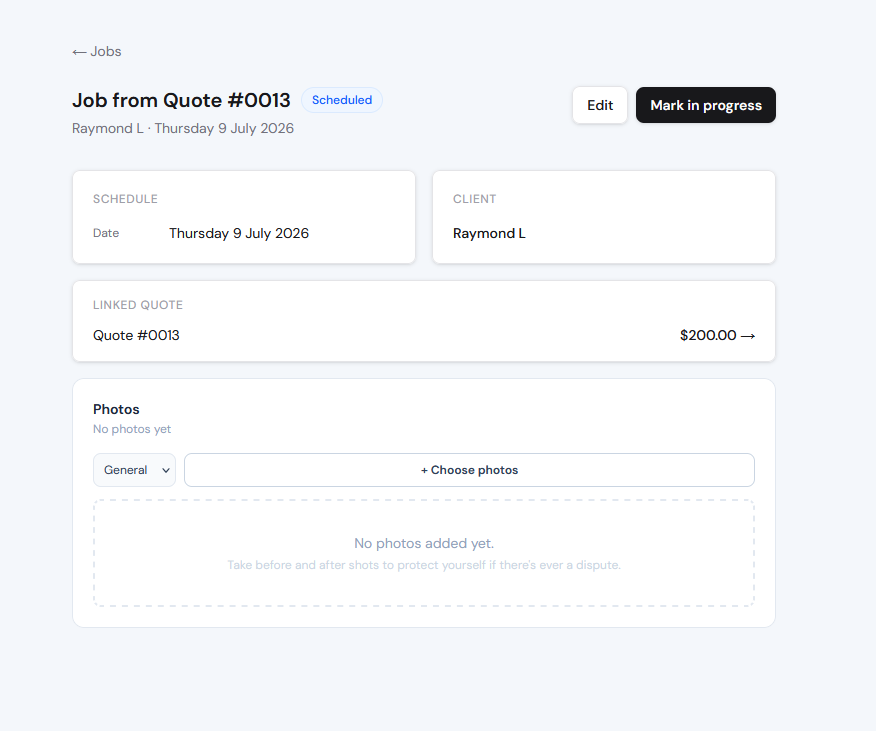
On site, open the job on your phone. Tap the address to get directions, check the client notes, and take before photos when you arrive. Update the job status as you go.
Photos attach directly to the job record with a timestamp. Before and after shots give you proof of condition and proof of completion in one place.
Step 07
Send the invoice
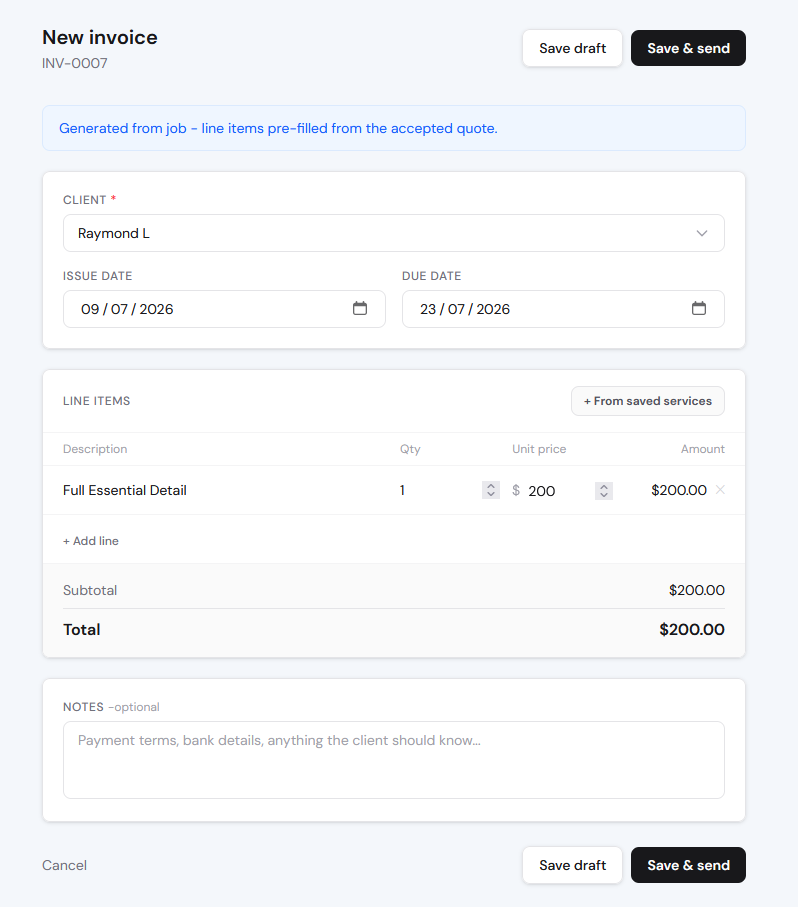
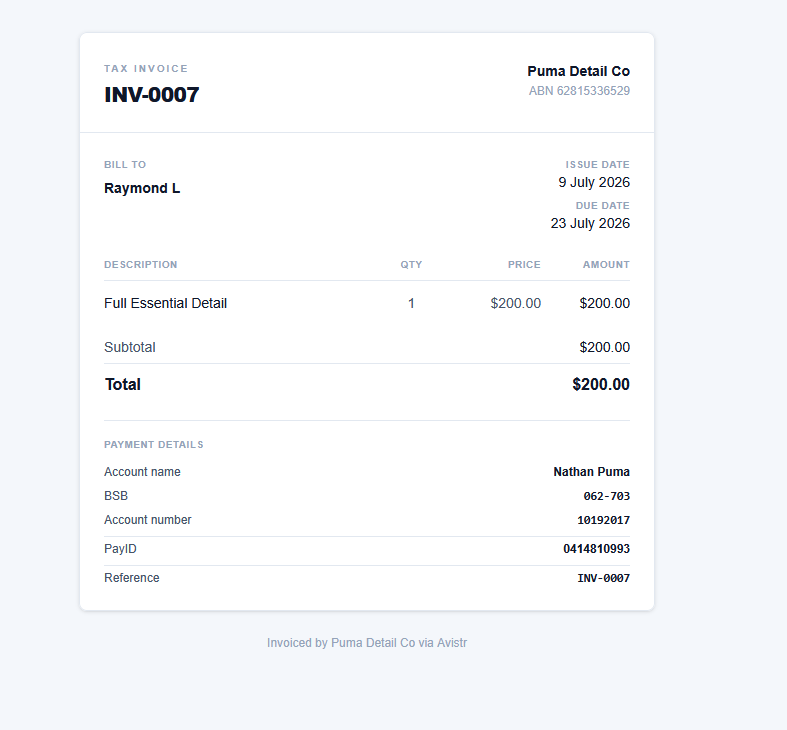
Mark the job done and choose how the client is paying. Send an invoice by email and it arrives with your bank details and PayID right there on the page - or record a cash payment in one tap.
The invoice is pre-filled from the original quote. Nothing to re-enter. ATO-compliant with ABN, GST breakdown and sequential numbering.
Step 08
Get paid
The client pays by bank transfer or PayID directly into your account. No processing fees taken out. When the money arrives, mark the invoice as paid and it is done.
Your dashboard shows all unpaid invoices at a glance so nothing slips through. Overdue invoices are flagged automatically.
2 min
to send a quote from your phone
1 tap
to convert a quote into a booked job
$0
in payment processing fees
5 min
to set up your account
Ready to start?
Try it free for 14 days.
No card required. Set up in five minutes. Cancel anytime.
Start free trial